
 Time Service Configurator
Timekeeping on observatory control systems is critical to ensure accurate RA pointing of the telescope and general event scheduling. In astrometric and non-sidereal object studies, accurate timestamps in image metadata are critical when it comes to later analysis. Many solutions exist for syncing the clocks of Windows systems with that of different time references. These solutions often use network-based protocols such as Network Time Protocol (NTP) and direct reception of timing signals from GNSS constellations. Of the two, NTP is often the most convenient to use across multiple systems in an observatory setting and when Internet connectivity is available.
Issues with timekeeping on Windows
Compared to UNIX/Linux OSes, Windows has had a mixed history when it comes to its use of NTP. The default operating mode of Windows’ own NTP client the vast majority of third-party NTP clients for Windows use the NTP protocol in a more simplistic mode, referred to as SNTP – the “S” meaning “Simple”. SNTP clients are problematic because it periodically “steps” the local system clock to match it with the reference NTP source with each query it makes. “Stepping” is the timekeeping term for instantly adjusting the clock forward or backward to match the reference time source, similar to how one would set the time on a microwave oven. This means that time can skip ahead, such as in the case of a slow local clock being stepped forward to catch up with the reference time source. A given time of day could also happen twice in the case of a fast local clock being stepped backwards where it will, eventually, tick through the previous time again.
The severity or size of the step is a product of how far the local system’s clock drifts in the time between its SNTP client’s queries of the reference time source. Clock drift is a function of the system clock’s oscillator quality, temperature, and age. In some telescope control systems, SNTP step events can be witnessed in the form of corresponding jumps in the physical movements in the right ascension axis. In high speed imaging scenarios that require sub-second resolution in timestamps, the timestamps recorded into image metadata could be duplicative, falsely reversed in chronological order, or have unexpectedly larger time gaps between two images when an SNTP sync occurs.
Full NTP clients, on the other hand, “slew” the local system clock. Slewing involved increasing or decreasing the ticking rate to match the time reference. These adjustments in clock speed are subtle and constant. This manner of adjustment leads to a local clock that never skips time or experiences the same time of day more than once as it monotonically ticks forward. This is referred to as a “disciplined” clock. NTP clients that do this also can track multiple time references, choosing the best reference dynamically based on ever-changing network conditions and consistency. A NTP server that appears to be more stable, with less jitter and round-trip query delay, is preferred. Meinberg’s NTP Software for Windows has been one way to obtain such a proper, full NTP client on Windows. However it has a few drawbacks when it comes to its configuration and monitoring, which necessitates the user to have a more advanced understanding of Windows services, permissions, and the configuration of the NTP.org software itself.
A better solution, built into Windows itself
The good news for Windows users is that there has been a full NTP client present in it since Windows 10 Version 1607 and Windows Server 2016. However, by default, it is not configured to act in the capacity of a full NTP client; it still exhibits an SNTP behavior. Known as the Windows Time service and referred to internally as W32Time, the full NTP client is capable of tracking up to 8 NTP sources simultaneously and will slew the local clock to match the chosen reference instead of stepping it.
The main blocker to utilizing the full NTP client mode of Windows Time service is that it is currently only configured and managed via the Windows command line interface. This aspect makes the full NTP client capability hidden and not utilized when it comes to the more casual Windows user, who usually opts to use one of the many third-party SNTP clients for Windows. To solve this issue of configuration and management, EOS created Time Service Configurator (TSC).
Time Service Configurator adds the missing part
Elemental Observatory Systems’ Time Service Configurator is a FREE Windows app that provides a GUI for the configuration and monitoring of NTP servers used by the Windows Time service, removing the need to resort to the Windows CLI to do so. It will also expose the various Windows registry settings that govern NTP server polling rates. All in all, it is intended to be a simple companion app that does this specific task well. TSC is also security-minded. Using it to monitor the Windows Time service does not require TSC to run with elevated privileges, however configuring it or the related registry settings does. On those tabs, a prompt exists to easily restart the app “As Administrator” in order to effect any configuration changes.
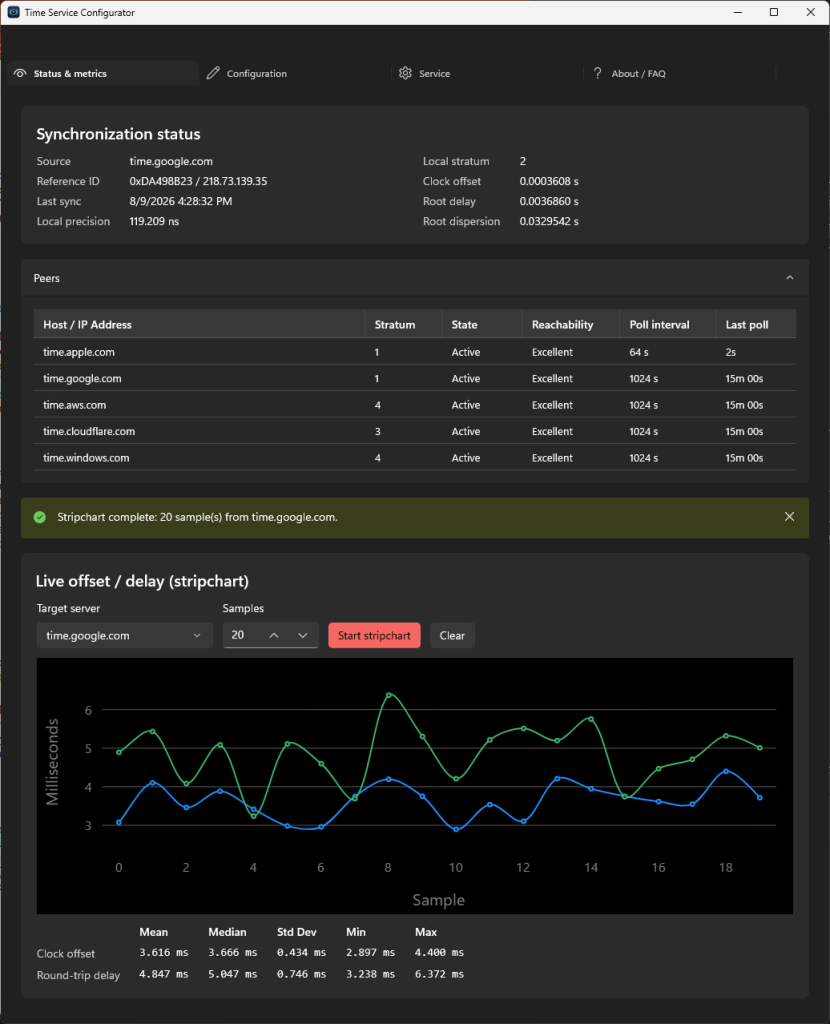
Status & Metrics
TSC’s Status & Metrics tab shows the current state of W32Time’s clock synchronization and the configured NTP servers. Each field contains a tool tip that explains it in detail.
The stripchart functionality uses the w32tm.exe command’s strip chart feature to sample a test a configured NTP server or one that is manually provided. This can be used to manually check a given NTP server’s consistency and reachability.
Configuration
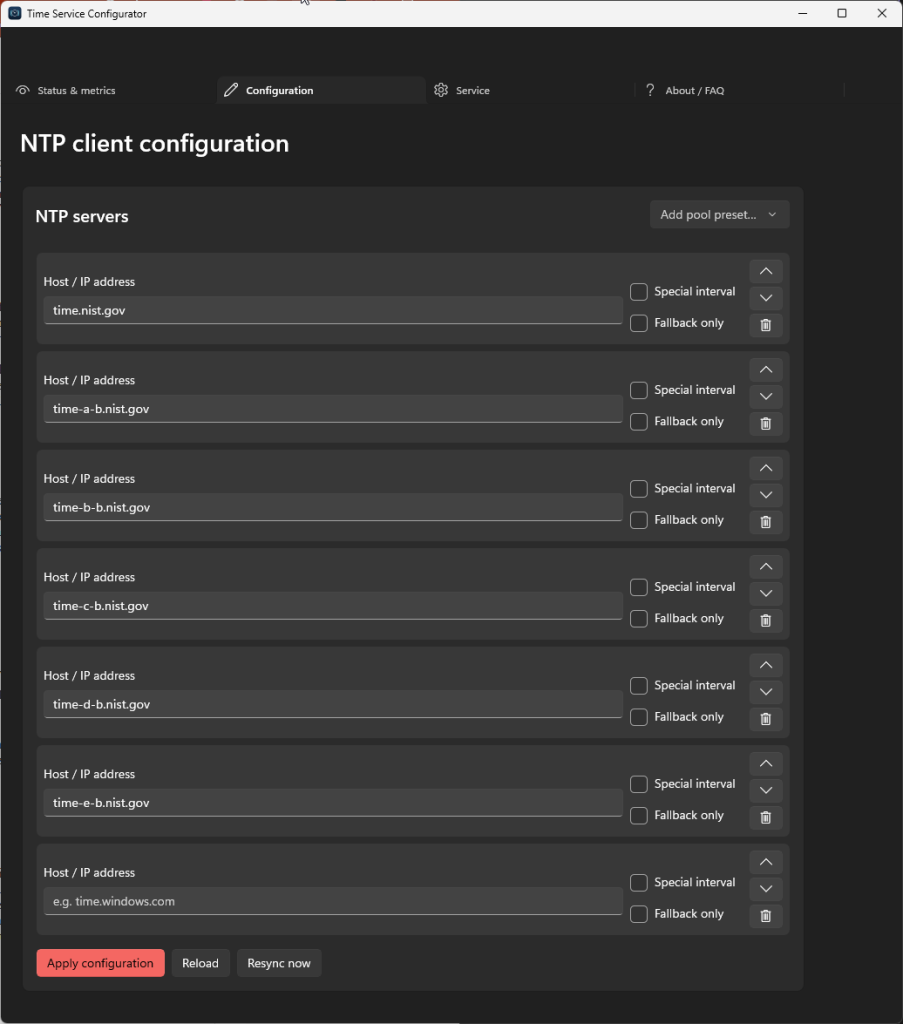
The Configuration tab is where all Windows Time service operational configuration takes place. The desired NTP servers are specified along with any server-specific options. A menu of popular NTP servers and NTP server pools exists. Selecting one will fill in any empty NTP server slots, of which there is a maximum of 8.
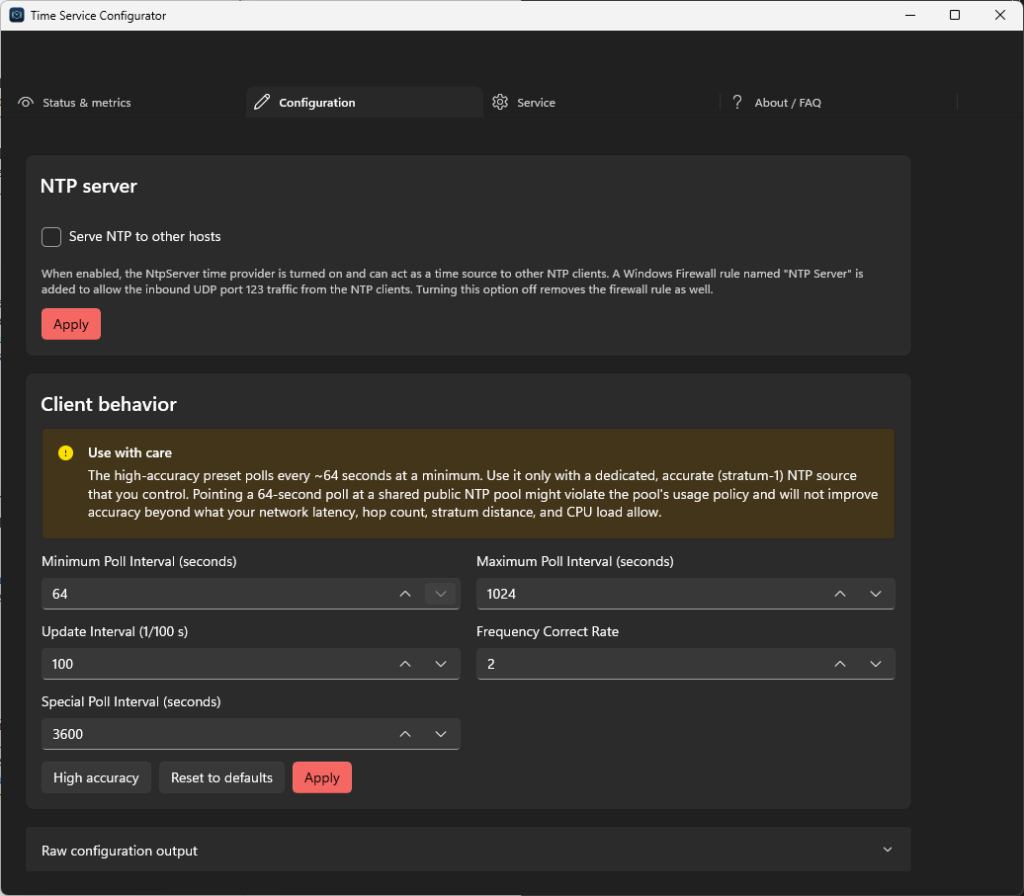
The Windows Time service can also act as an NTP server, turning your Windows system into both an NTP client for itself, and an NTP server for other systems on the network. An option exists to activate this feature. This is especially useful for Windows systems acting in the capacity of an Active Directory Domain Controller.
Finally, there are the registry settings that govern the client polling rates. The “High Accuracy” button will change these settings to reflect that of a typical full NTP client. Bear in mind that certain NTP servers or NTP server pools might impose poll rate limits that may be longer than what is configured.
Service
The Service tab exists to view the disposition of and manage the Windows Time service itself. If migrating from other timekeeping solutions such as Meinberg’s NTP client, you may need to reset the Windows Time service to its default configuration or restart it so that Windows can reinstate configuration items that the Meinberg NTP installer might have altered.
Download

TimeServiceConfiguratorSetup-1.1.0.0-x64.msi
SHA256: 35334e32544a388d29af8b15a91f4a2ffa3cfea2eac88d2f842810fa54c1ba79